Sink Deployment Tutorial: How to Deploy Sink to Cloudflare Pages
This tutorial will explain in detail how to deploy the Sink link shortener to Cloudflare Pages. We will guide you through the entire process step by step, including forking the repository, creating a Cloudflare Pages project, configuring environment variables, binding a KV namespace, and more. Each step includes detailed instructions and images to help you complete the deployment smoothly.
Step 1: Fork the Repository
Fork the repository to your personal GitHub account.
Click Create fork
==》Click here to Fork《==
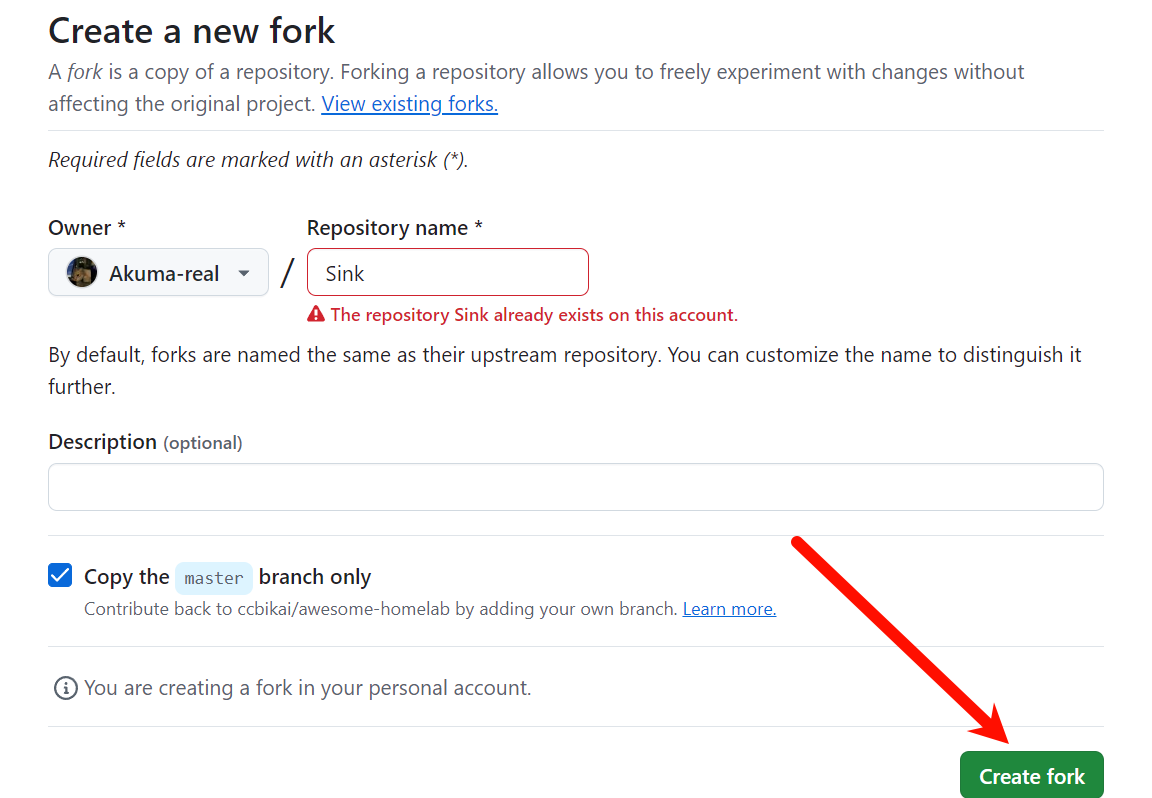
Fork Repository
Step 2: Create a Cloudflare Pages Project
Log in to the Cloudflare Dashboard, navigate to the Workers and Pages tab, and click the Create button.
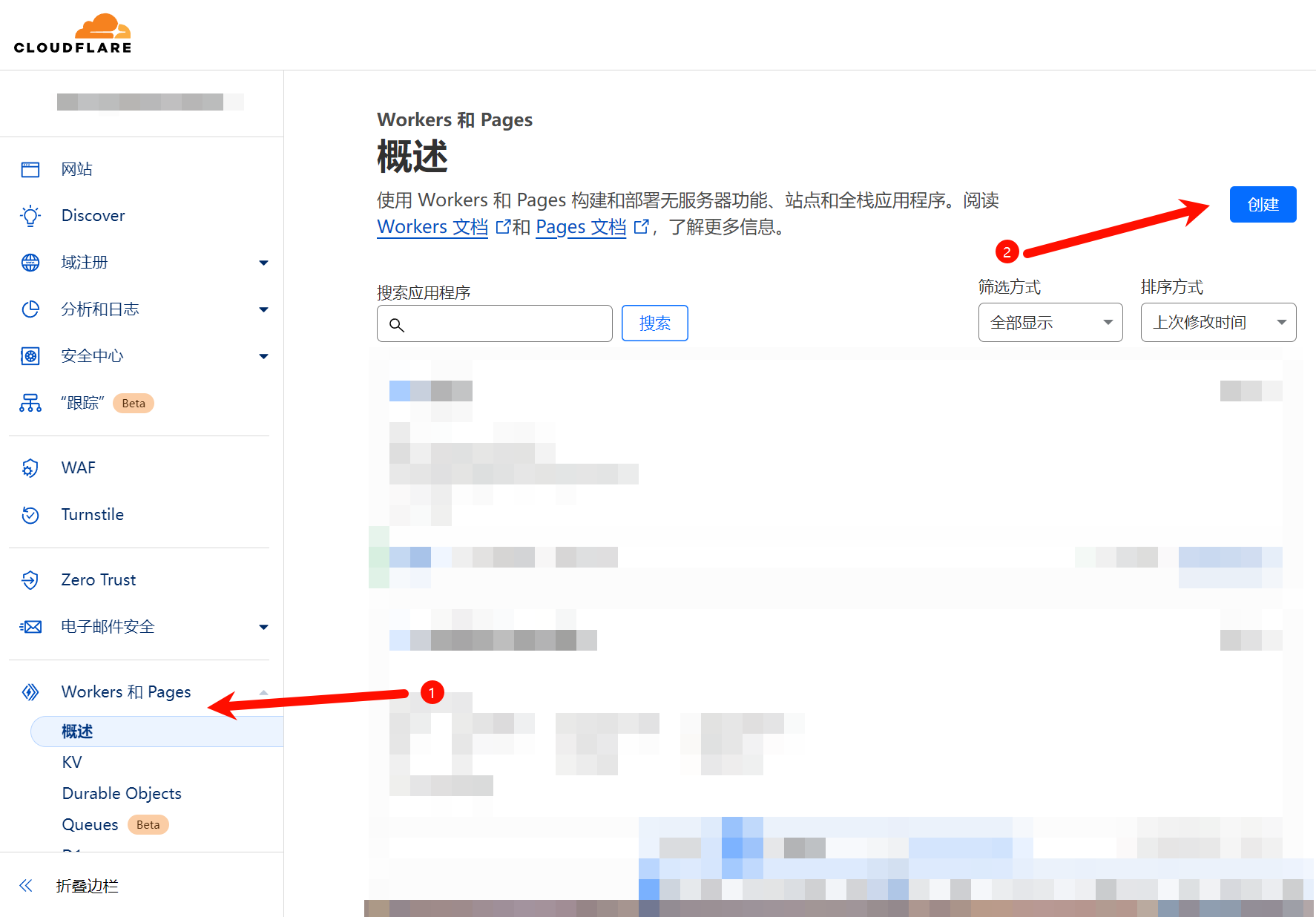
Create Cloudflare Pages ProjectSelect the Pages tab and click Connect to Git
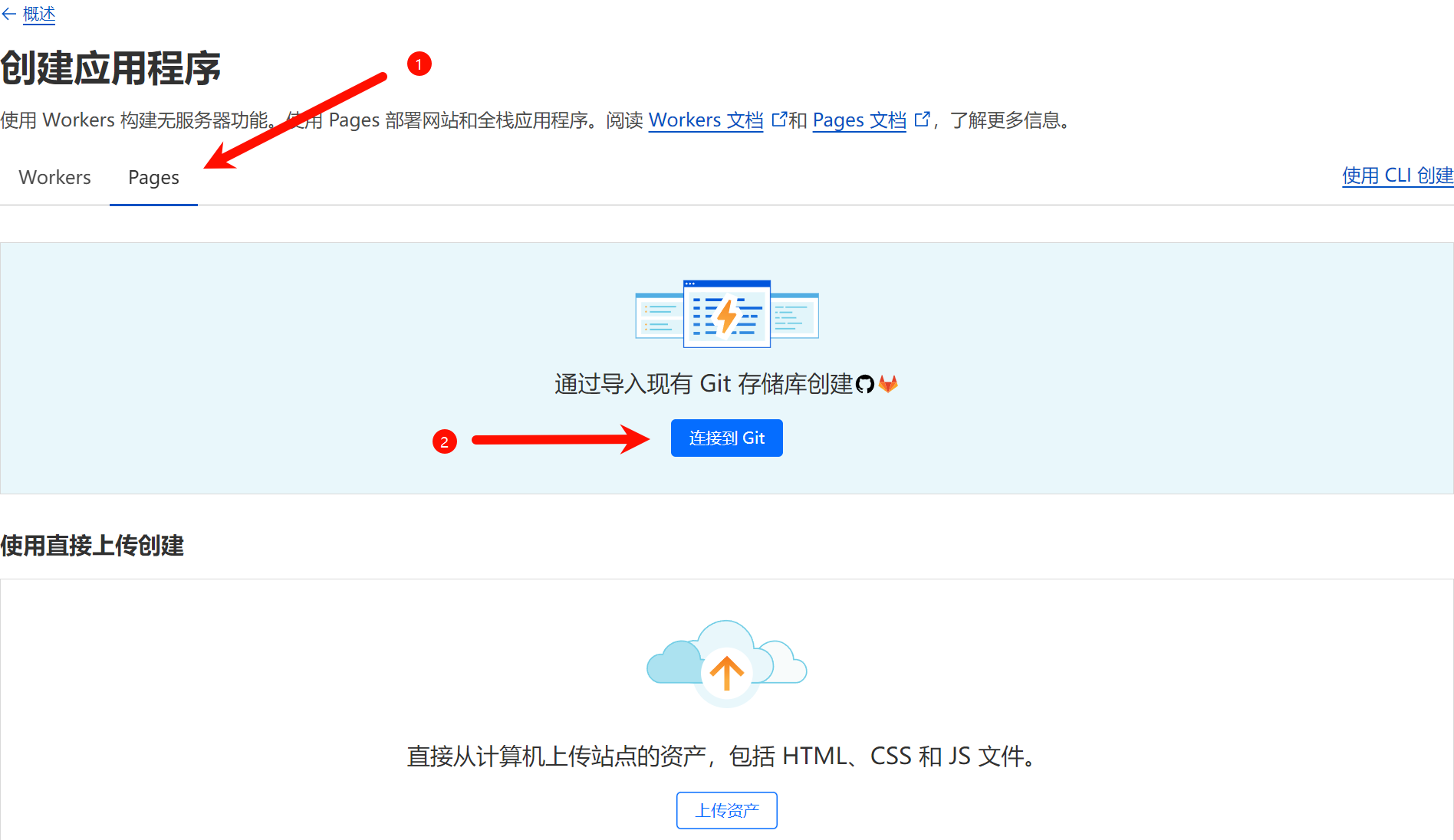
Select the Pages tab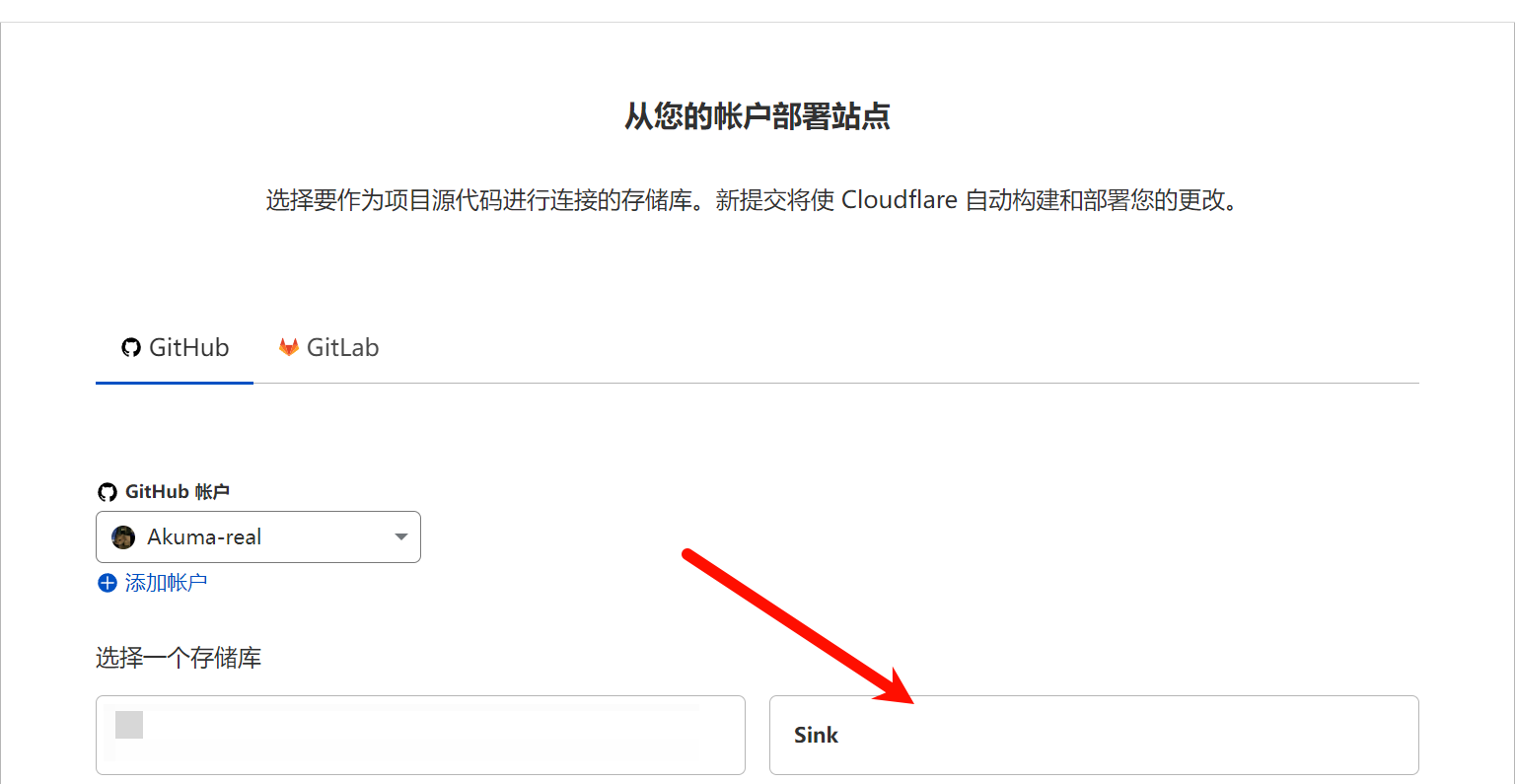
Git projectSelect Nuxt.js as the preset, and Cloudflare will automatically detect the project's configuration.
Configure environment variables
NUXT_SITE_TOKEN: Must be longer than 8 characters; this will be your login password.NUXT_CF_ACCOUNT_ID: Find your account ID.NUXT_CF_API_TOKEN: Create a Cloudflare API token. This token should have at least theAccount.Account Analyticspermission.
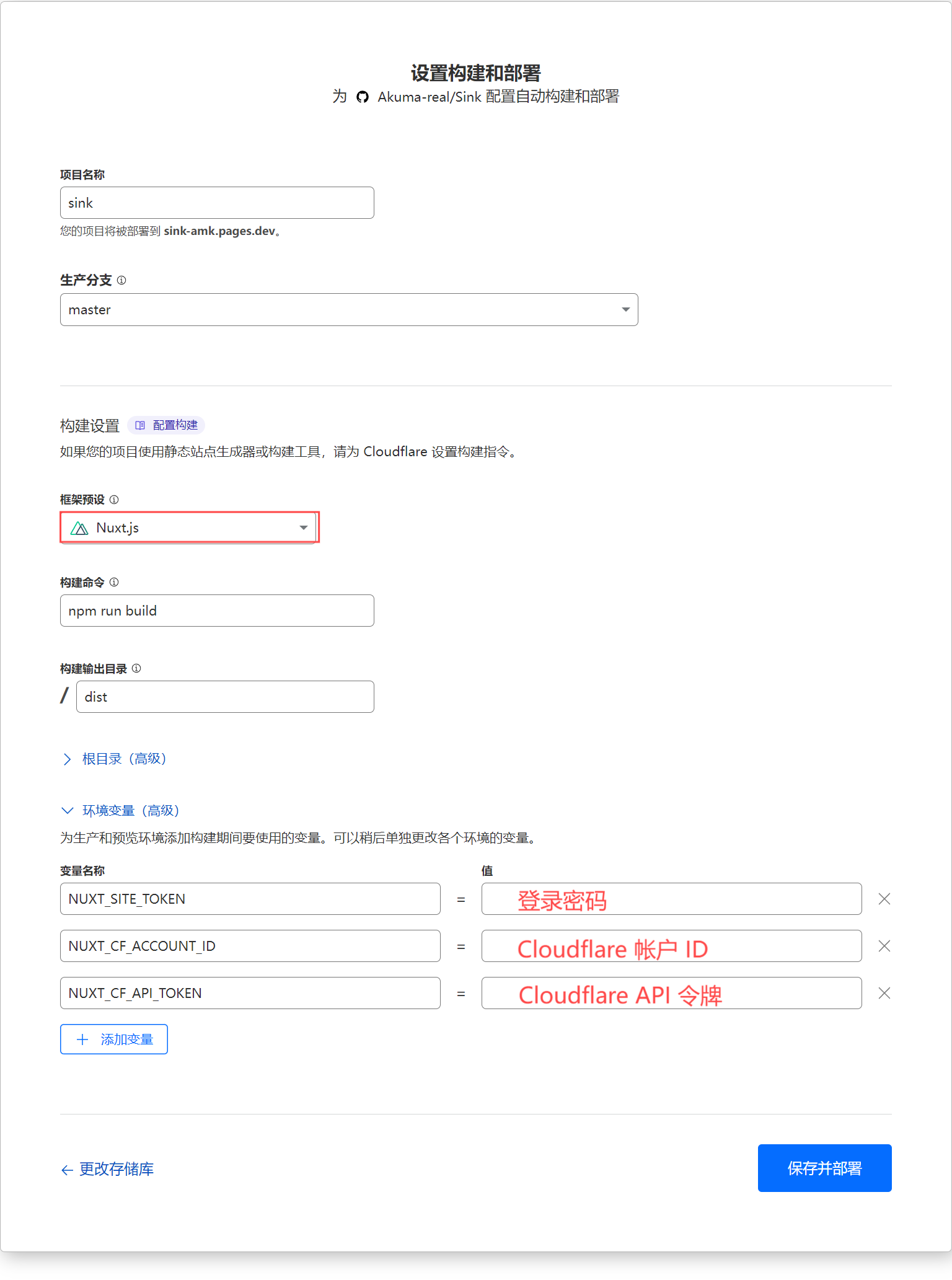
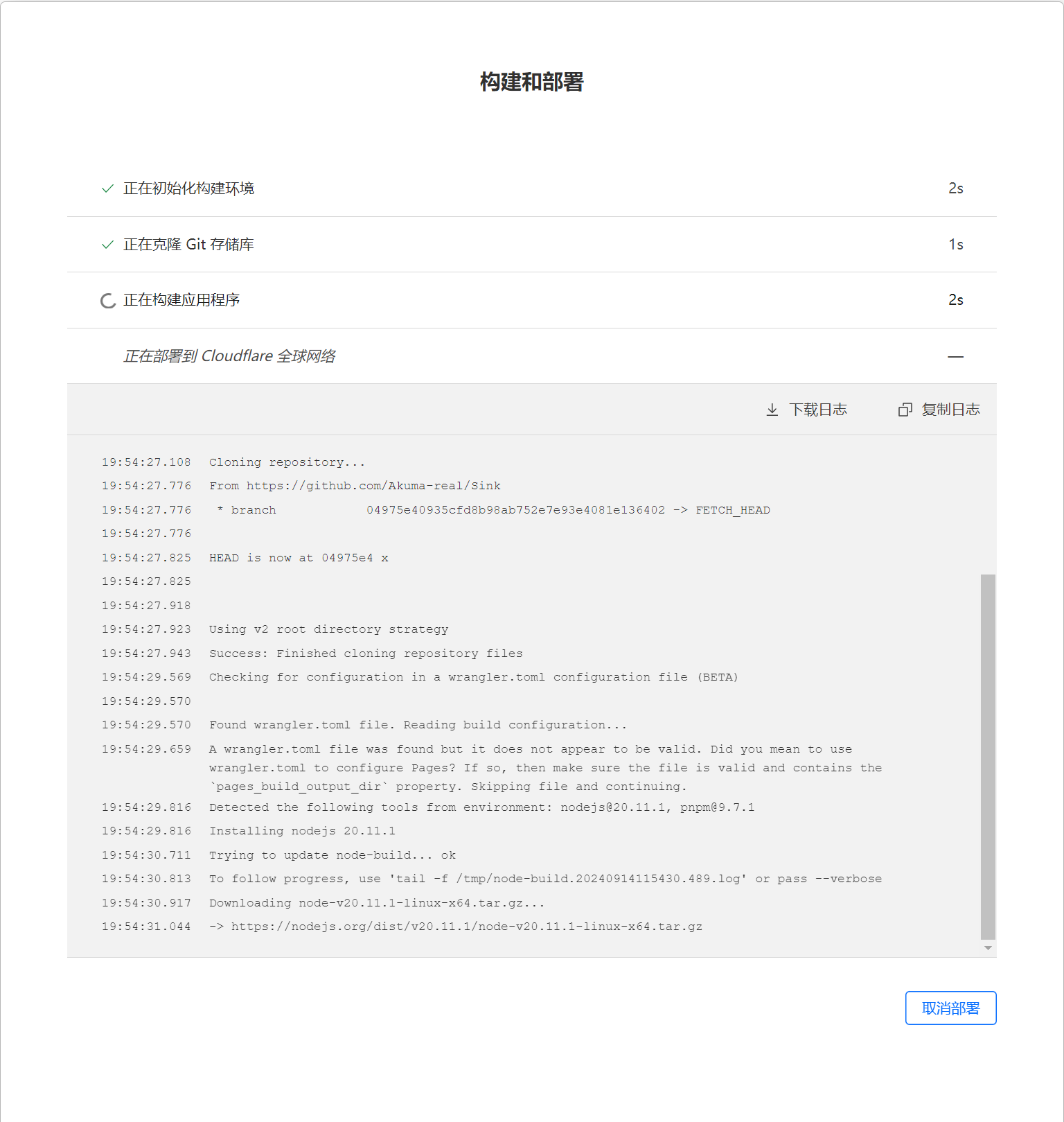
After completing all the above configurations, click Save and Deploy, then click Cancel deployment
cancel-buildClick Continue to project
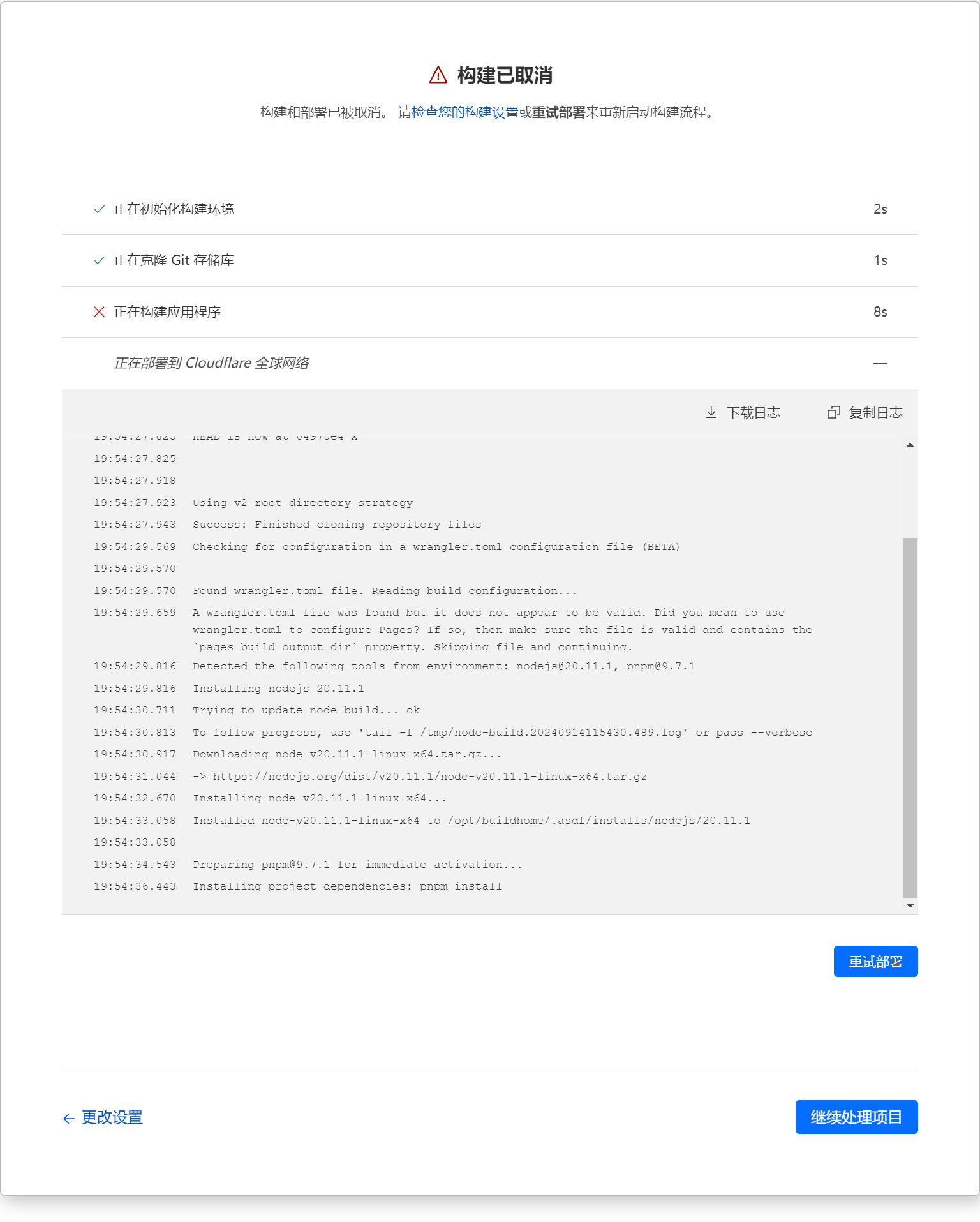
image-20240914195744250
Step 3: Configure the KV Namespace and Other Bindings
After the deployment starts, we still need to make some additional configurations in Cloudflare Pages:
Go to KV and create a namespace
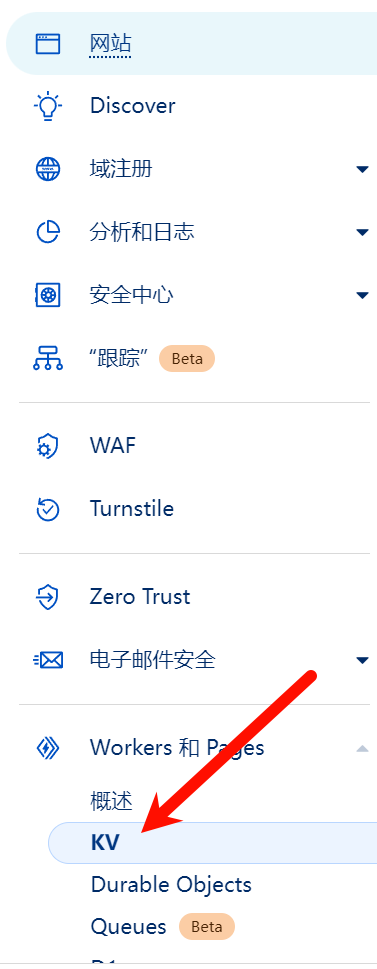
image-20240914200856876The KV name can be anything
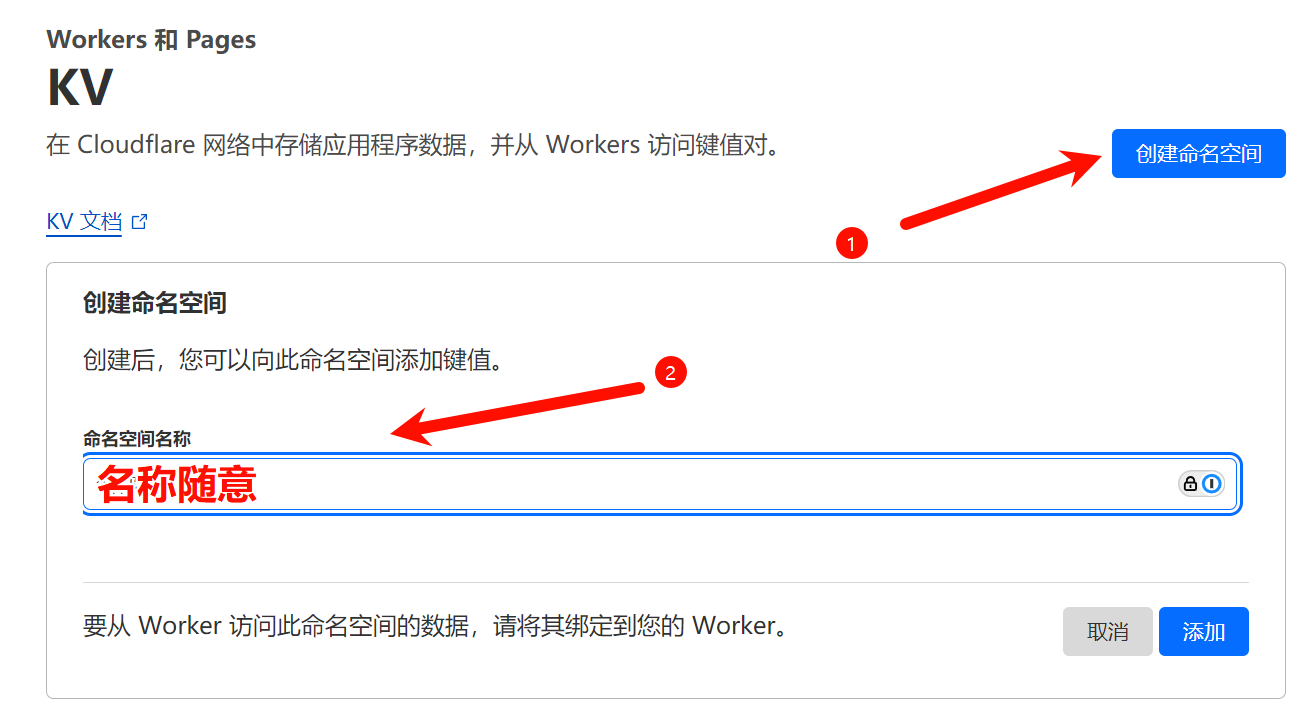
image-20240914201013546
Step 4: KV Namespace Binding
In KV, bind a KV namespace and name it
KV.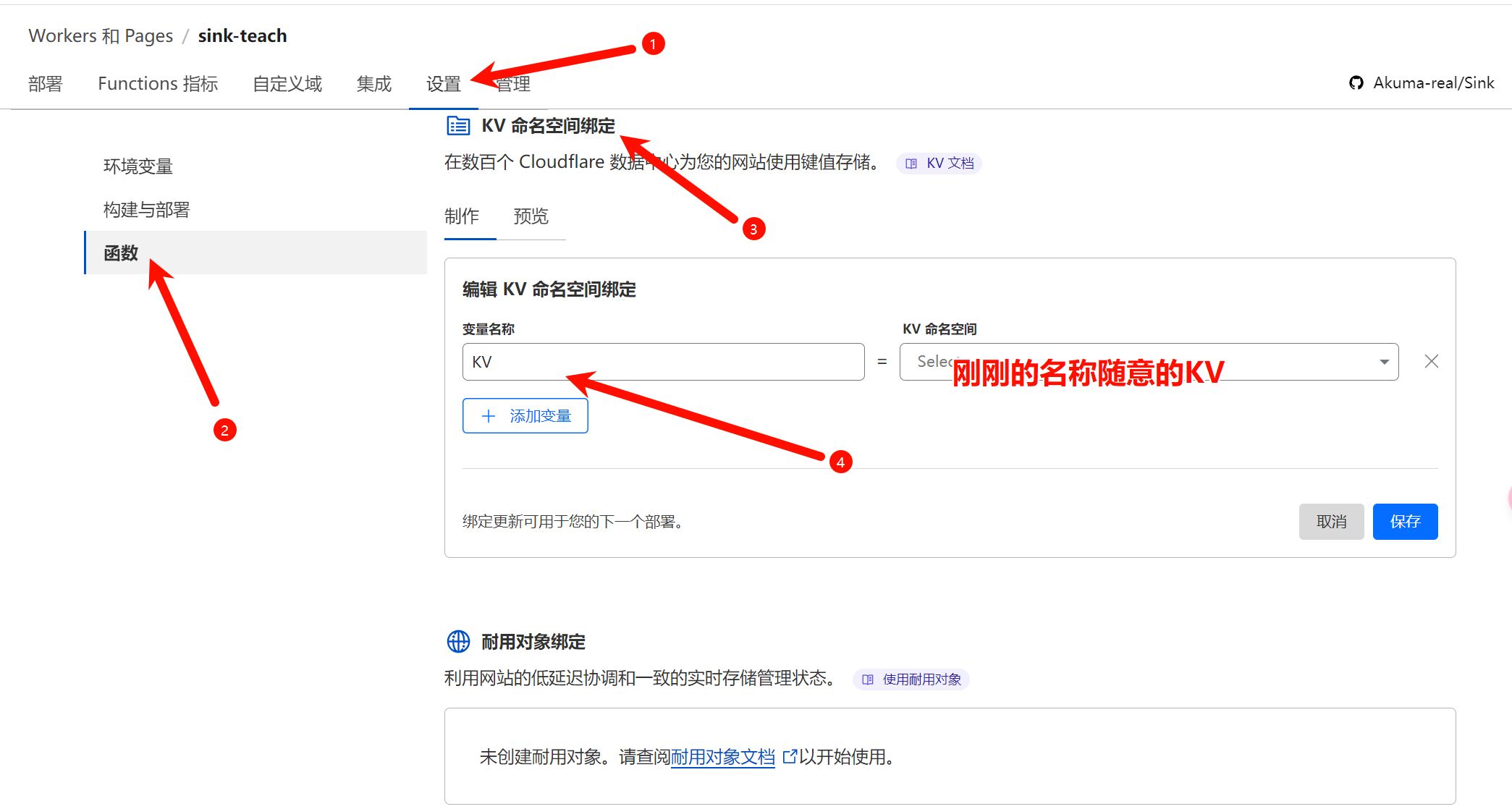
image-20240914201427255
Step 5: Workers AI Binding (Optional)
If you want to use the AI short link generation feature, navigate to Workers AI Bindings and bind the
AIvariable to the Workers AI Catalog.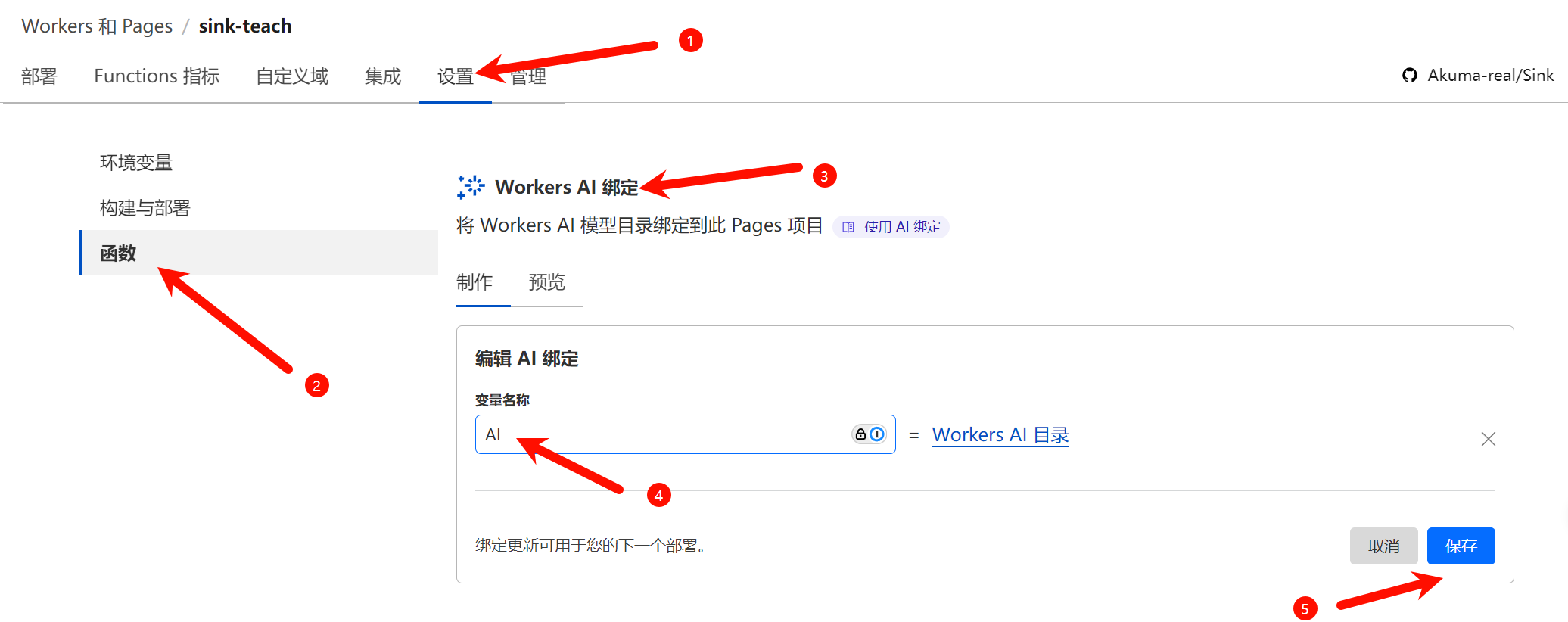
image-20240914201551723
Step 6: Analytics Engine Binding
Bind Cloudflare Analytics Engine. Bind the
ANALYTICSvariable to the Sink dataset, and make sure Analytics Engine Beta is enabled for your Cloudflare account.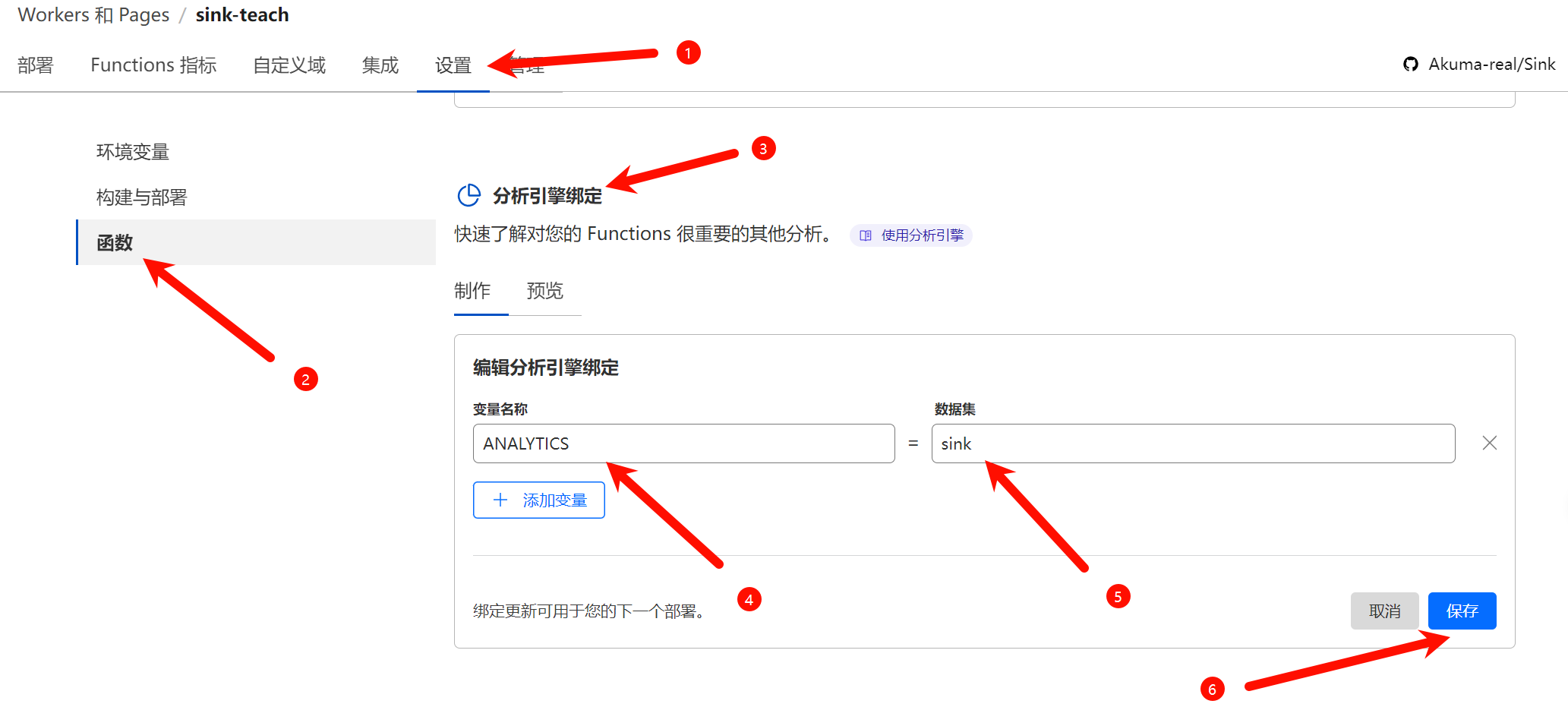
image-20240914201654389
Step 7: Redeploy
After all bindings are complete, go back to Deployments, click ···, and then click Retry deployment.
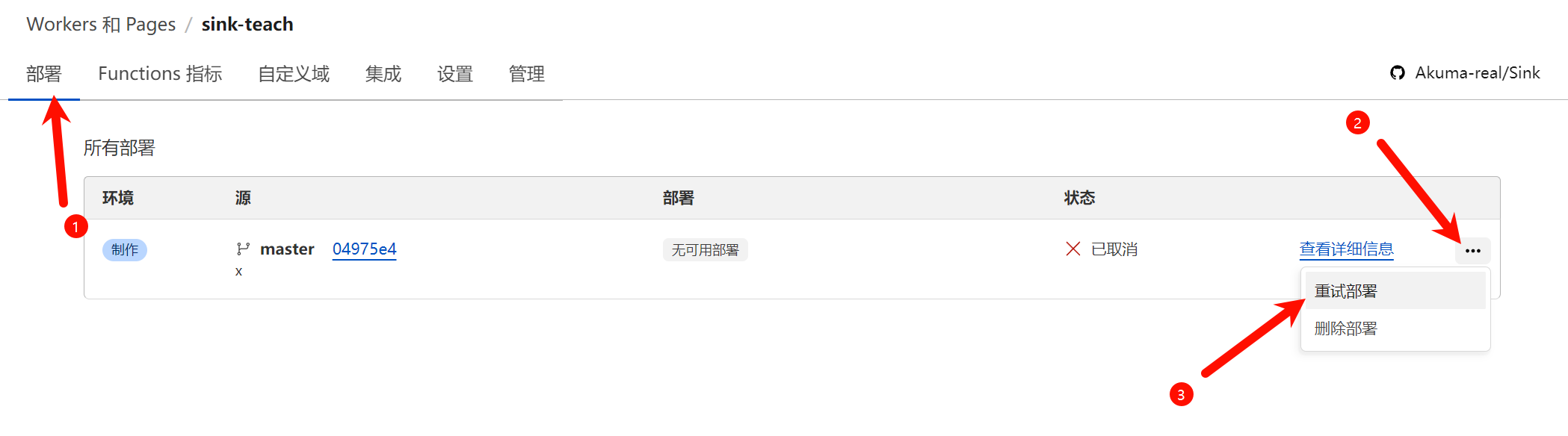
image-20240914201751830After redeploying, the project will run normally